A Better Finder Rename for Mac
Batch rename hundreds of files, photos, and music tracks in one pass. Live preview, EXIF capture dates, regex, and sequential numbering built in.
What Is A Better Finder Rename?
A Better Finder Rename is a batch file renaming app for Mac that lets you rename hundreds or even thousands of files, photos, and music tracks in a single pass. Instead of clicking “Rename” one file at a time in Finder, you build a set of rename actions – add text, strip characters, convert case, insert sequential numbers – and watch every result appear in a live preview table before anything actually changes on disk. Developed by publicspace.net and shipping continuously since 1996, it has become the reference tool photographers, musicians, and IT admins reach for when Finder’s built-in rename option runs out of options.
Who actually uses it
The audience splits into a few recurring groups. Photographers use A Better Finder Rename to rename photos by EXIF capture date right after a shoot, so a folder of IMG_0004.JPG files becomes a properly dated, sequential set before it ever reaches Lightroom or Capture One. Music collectors lean on its ID3/metadata renaming to fix a library where file names and tag data have drifted apart. Video editors and admins use file pairing to keep RAW+JPEG or footage+sidecar files in sync when one half of the pair gets renamed. None of these are edge cases the app tolerates – they’re the reason it exists.
Current release: A Better Finder Rename 12.31 runs natively on Intel and Apple Silicon Macs (M1 through M4) and requires macOS 13 Ventura or later, with confirmed compatibility through macOS 26/27 “Golden Gate.” A legacy build, version 12.14, is maintained separately for Macs still on macOS 10.15 Catalina through macOS 15 Sequoia.
Why it has stayed relevant for nearly three decades
Most rename utilities cover the basics – find/replace, add a prefix – and stop there. A Better Finder Rename organizes its actions into 15 categories spanning text manipulation, character handling, position-based edits, format conversion, and truncation, and it lets you stack several of those actions into one multi-step rename job. Full regular expression support means power users can write pattern-based rules that a simple find/replace tool for Mac could never express. It’s a one-time purchase with a free trial, not a subscription, which is part of why the same license keeps showing up in Reddit threads and forum posts more than a decade after people bought it.
Key Features
Every rename action in A Better Finder Rename previews before it commits. Here is what’s actually inside the app, not just the highlights.
Live Preview Table
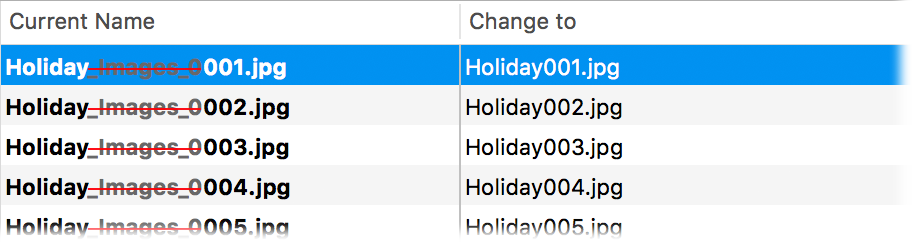
Every action updates a two-column “Current Name / Change to” table instantly, with changed characters highlighted, so you confirm the exact result on all selected files before committing a single rename.
Drag-and-Drop from Finder
Drag a folder or a multi-select of files straight from a Finder window into the app – no import dialog, no file picker. Thousands of files load into the working list in one drop.
Sequential Numbering
Add running numbers with configurable start value, step size, and zero-padding (01, 02, 03… or 001, 002…), so a folder of vacation photos becomes Holiday_001.jpg through Holiday_348.jpg in one operation.
EXIF Capture Date Renaming
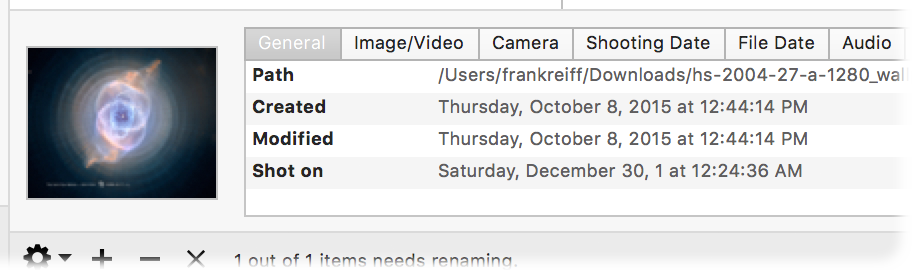
Pull the actual shoot date and time straight from a photo’s EXIF metadata and use it in the new filename – the standard workflow for organizing a memory card dump before it hits a photo library.
ID3 / Music Metadata Renaming
Rename audio files using their own ID3 tags – artist, album, track number, title – so a folder of inconsistently named MP3s can be normalized to match the metadata a music library actually reads.
Full Regular Expression Support
Write regex patterns for find-and-replace actions when simple substring matching can’t express the rule – strip a variable-length camera prefix, capture and reorder groups, or match on file extension patterns.
Multi-Step Renames
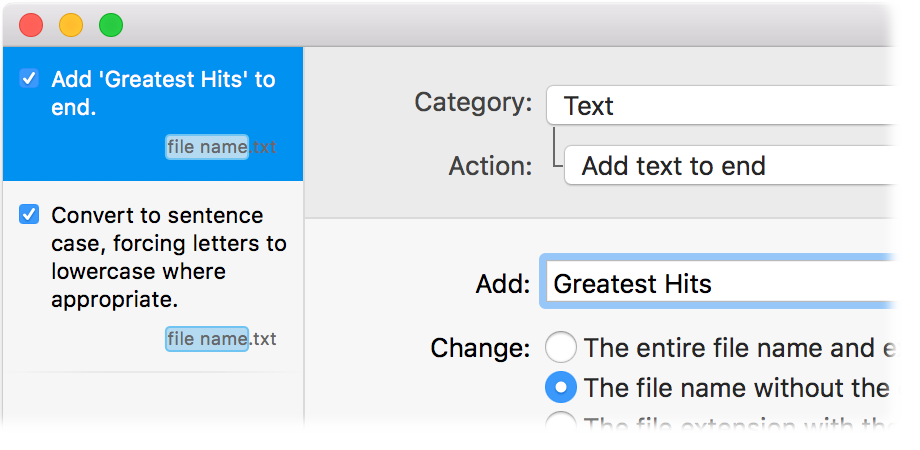
Stack multiple rename actions into one job – add text, then convert case, then insert a sequence number – each step listed in the sidebar and applied in order, with the live preview reflecting every step combined.
Tag-Based Renaming
Insert dynamic tokens – like <Date> or <Counter> – directly into a rename pattern, so one saved pattern can generate correctly formatted names across completely different file batches.
File Pairing (v12)
Keep RAW+JPEG image pairs or video+sidecar file pairs in sync during a rename – when the JPEG gets renamed, its paired RAW file follows automatically instead of falling out of sync.
Filter Action
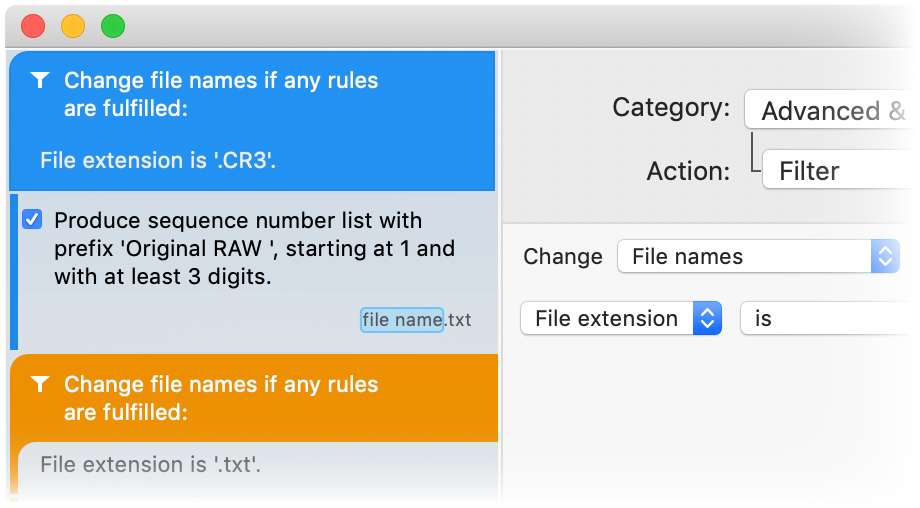
Scope a rename action to only the files that match a condition – file extension is “.CR3”, name contains a specific string – so one batch job can apply different rules to different subsets of the same folder.
Presets and Droplets
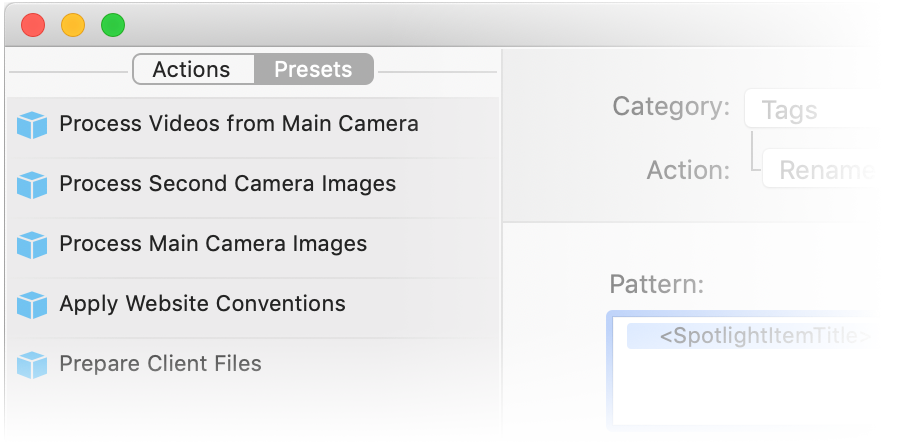
Save a complete multi-step rename recipe as a preset, then turn it into a droplet – a standalone icon you drag files onto to run the exact same rename job again without reopening the app.
Manual File Reordering
Drag files into a specific order inside the working list before applying sequential numbering, so the numbers land on the files in the order you actually want, not just alphabetical or date order.
System Requirements
A Better Finder Rename is Mac-only. There is no Windows or Linux build.
| Component | Minimum | Recommended |
|---|---|---|
| Operating System | macOS 10.15 Catalina (legacy v12.14 build) | macOS 13 Ventura or later (current v12.31 build) |
| Processor | Intel 64-bit Mac | Apple Silicon (M1, M2, M3, M4) – native Universal binary |
| Memory (RAM) | 4 GB | 8 GB or more for batches of several thousand files |
| Disk Space | 50 MB free for the app | 100 MB free (plus headroom for the files being renamed) |
| Display | 1280 x 800 | 1440 x 900 or higher |
| Internet | Required for download and license activation only | Not required for day-to-day use |
Version 12.31 has been tested and confirmed compatible through macOS 26/27 “Golden Gate.” Users on older Macs that can’t update past Catalina-through-Sequoia should install the legacy 12.14 build instead of the current release.
Download A Better Finder Rename
Direct download, straight from the developer. Free trial included, no subscription.
For macOS 13 Ventura and later
Native Universal binary – runs on Intel and Apple Silicon (M1/M2/M3/M4) Macs without Rosetta. Compatible through macOS 26/27 “Golden Gate.”
Download A Better Finder Rename Version 12.31 | 14.4 MB DMG | macOS 13+- FileABFRX12.dmg
- Size14.4 MB (15,110,544 bytes)
- LicenseFree trial, then $29.95 one-time
Legacy Mac?
Running macOS 10.15 Catalina through macOS 15 Sequoia and can’t update further? Use build 12.14 instead – it’s maintained specifically for that range and won’t run into compatibility issues the current release could hit on older system frameworks.
Download v12.14 (legacy)Screenshots
Real interface captures – the live preview, the multi-step action sidebar, and the tools that make batch renaming safe to run on thousands of files at once.
Getting Started with A Better Finder Rename
From download to your first batch rename job, with the actual menu paths and settings involved.
Downloading A Better Finder Rename
Get the installer from the download section above rather than a search-result mirror – it’s the same DMG the developer serves, without a wrapper installer bundled around it. Two builds are offered: version 12.31 for any Mac on macOS 13 Ventura or newer, and the legacy 12.14 build for Macs still on macOS 10.15 through macOS 15. Pick based on your actual macOS version, not the newest-looking option – installing 12.31 on an unsupported older Mac is the single most common cause of a launch failure people report.
The DMG is 14.4 MB (about 15.1 million bytes), so on any modern broadband connection it downloads in a few seconds. There’s no separate 32-bit/64-bit choice to make – the current build is a single Universal binary that runs natively on both Intel and Apple Silicon chips, so you don’t need to figure out which architecture your Mac uses before downloading.
Installation Walkthrough
Double-click the downloaded ABFRX12.dmg file. macOS mounts it as a virtual disk and opens a window showing the A Better Finder Rename app icon next to a shortcut to your Applications folder – this is the standard macOS drag-to-install pattern, not a custom installer wizard.
- Drag the A Better Finder Rename icon onto the Applications folder shortcut in that same window.
- Wait for the copy to finish, then eject the mounted disk image (right-click it on the Desktop and choose “Eject”, or drag it to the Trash).
- Open Applications and double-click A Better Finder Rename to launch it for the first time.
On first launch, the app opens directly to its main window – there’s no lengthy setup wizard. You’ll be running in trial mode immediately, with the option to enter a license key later from the app’s menu once you decide to purchase.
Initial Setup and Configuration
Before your first real rename job, two preference changes are worth making right away from the app’s Preferences panel:
- Confirm before renaming: Leave this enabled while you’re learning the app. It adds one extra click before files actually change, which is exactly what you want until you trust your rename patterns.
- Default file sort order: Set this to match how you’ll typically load files (by name or by date added) so sequential numbering lands on files in a predictable order without manual reordering every time.
If you’re moving from Finder’s built-in rename or a simpler tool like NameChanger, there’s no import step needed – just drag your files in and rebuild your common rename patterns as presets (covered below), so you only need to do this setup once per workflow.
Your First Rename Job
Let’s rename a folder of photos from a shoot, going from generic camera names like IMG_0004.JPG to a dated, sequential set.
- Drag the folder of photos directly from Finder onto the A Better Finder Rename window. The files populate the working list on the left.
- Click the “+” button below the action sidebar to add your first action. Set Category to “Date/Time” and Action to “EXIF/IPTC Capture Date” – this pulls the actual shoot date out of each photo’s metadata.
- Add a second action: Category “Text”, Action “Add text to end” or “Add text to beginning”, and type in a label like “Holiday”.
- Add a third action: Category “Numbering”, Action “Add sequence number” – set the start value to 1 and padding to 3 digits (001, 002, 003…).
- Check the live preview table on the right. Every file’s proposed new name appears in the “Change to” column, with changed portions highlighted, before anything happens on disk.
- Once the preview looks right, click the “Rename” button in the bottom status bar to commit.
That three-step stack – EXIF date, label, sequence number – covers the single most common use case for the app: turning a memory card dump into a properly named, chronologically sequential photo set in under a minute.
Tips, Tricks and Best Practices
- Save repeat jobs as presets. Once you’ve built a multi-step rename you’ll use again – like the EXIF date + label + sequence stack above – save it as a preset from the Presets sidebar instead of rebuilding it every time.
- Turn frequent presets into droplets. A droplet is a standalone icon on your Desktop or in the Dock – drag a folder of files onto it and the saved rename job runs immediately, no need to open the main app window at all.
- Use the Filter action for mixed folders. If a folder contains both RAW and JPEG files but you only want to rename the JPEGs, add a Filter action set to “File extension is .jpg” before your rename steps.
- Common mistake: renaming before checking the preview table’s column widths – long filenames can get truncated visually in the table even though the actual result is correct. Widen the “Change to” column if you’re unsure.
- Where to get help: the developer’s own support page at publicspace.net covers each action category in detail, and r/macapps on Reddit has active threads from long-time users comparing workflows.
Frequently Asked Questions
Is A Better Finder Rename free to download?
The download itself is free – A Better Finder Rename runs as a fully functional free trial before you decide whether to buy a license. It is not a permanently free app, though; after the trial period the app prompts you to purchase a license to keep using it.
The single-user license costs $29.95 as a one-time purchase, not a subscription, which covers the current major version (12.x) and its updates. Family, small business, business, and enterprise tiers are also available directly from the developer at publicspace.net if you need multiple seats. The 14.4 MB installer (ABFRX12.dmg) and the trial period give you enough time to run real rename jobs on your own files before committing to a purchase, which is the best way to confirm it handles your specific workflow – EXIF renaming, ID3 tags, regex, whatever you actually need.
- Download the trial from the Download section
- Install and run real batch rename jobs during the trial window
- Purchase a license key from publicspace.net once you’re confident it fits your workflow
Pro tip: test the exact rename patterns you’ll use daily during the trial – EXIF date renaming, multi-step stacks, regex – rather than just clicking around, since that’s what actually confirms it’s worth the $29.95.
See the Download section for the direct trial installer link.
Is A Better Finder Rename safe to use?
Yes. A Better Finder Rename is a legitimate, commercially licensed macOS application from publicspace.net, a developer who has maintained this exact product continuously since 1996 – nearly three decades of a paper trail that a malicious app simply wouldn’t have.
The app only renames files you explicitly drag in and only after you review the live preview table and click the Rename button – it does not modify file contents, does not access files outside what you’ve added to its working list, and does not require elevated system permissions beyond standard file access. It’s distributed directly from the developer’s own CDN (not a third-party download aggregator bundling extra installers), which is exactly why this page links straight to the developer’s own ABFRX12.dmg file rather than a mirror.
- Distributed directly by the original developer since 1996
- Renames only files you add – no background file system access
- Native Universal binary, no bundled third-party installers or toolbars
Pro tip: macOS Gatekeeper may flag the app on first launch since it isn’t distributed through the Mac App Store – that’s a standard notarization prompt, not a malware warning. Approve it once via System Settings and it won’t ask again.
Check the System Requirements section to confirm your Mac meets the supported OS range before installing.
What are the system requirements for A Better Finder Rename?
A Better Finder Rename 12.31 requires macOS 13 Ventura or later and runs as a native Universal binary on both Intel and Apple Silicon Macs (M1, M2, M3, M4), with confirmed compatibility through macOS 26/27 “Golden Gate.”
If your Mac is on an older system – anywhere from macOS 10.15 Catalina through macOS 15 Sequoia – install the legacy 12.14 build instead, which is maintained specifically for that OS range. There isn’t a hard minimum RAM or CPU spec published by the developer beyond running any supported macOS version, but in practice 4 GB of RAM handles typical batches fine, while 8 GB or more is worth having if you routinely process several thousand files (large RAW photo batches, full music libraries) in one working list.
- Check your Mac’s macOS version via the Apple menu > About This Mac
- macOS 13+: download the current 12.31 build
- macOS 10.15-15: download the legacy 12.14 build instead
Pro tip: if you’re unsure which build you’re running, check Applications > A Better Finder Rename > About – it lists the exact version number.
Full requirements are broken down in the System Requirements table above.
Does A Better Finder Rename work on Apple Silicon (M1/M2/M3/M4)?
Yes – version 12.31 is a native Universal binary, meaning it runs directly on Apple Silicon’s ARM architecture without needing Rosetta 2 translation, and it also runs natively on Intel Macs from the same single download.
Being a native Universal build matters for a batch renaming tool specifically because rename operations on folders with thousands of files (a common EXIF-renaming workload for photographers) involve heavy file system I/O. Running natively on Apple Silicon avoids the translation overhead Rosetta 2 would add on an Intel-only build, so large batch jobs complete noticeably faster on M-series Macs than they would under emulation.
- M1, M2, M3, and M4 Macs: fully native, no Rosetta required
- Intel Macs: same DMG, same native performance on that architecture
- No separate “Apple Silicon” vs “Intel” download to choose between
Pro tip: if you’re not sure whether an app is running natively, open Activity Monitor while it’s running and check the “Kind” column – it should read “Apple” not “Intel” on an M-series Mac.
See the Download section for the direct link – the same file covers both architectures.
Is there a Windows version of A Better Finder Rename?
No – A Better Finder Rename is macOS-only and always has been. There is no Windows build, no Linux build, and publicspace.net has not announced plans to release one.
This is a genuinely common point of confusion because several Windows batch-rename tools carry similar-sounding names. If you’re on Windows and need equivalent batch renaming – sequential numbering, regex, EXIF-based renaming – you’ll need a separate Windows-native tool rather than looking for a Windows build of this specific app. The developer’s entire product line, including this app, targets macOS exclusively.
- Confirm you’re actually on macOS before downloading – check Apple menu > About This Mac
- If you’re on Windows, search specifically for “Windows batch file renamer” rather than this app’s name
- If you use both platforms, note that A Better Finder Rename licenses and presets do not transfer to any Windows tool
Pro tip: if you manage files across both a Mac and a Windows PC, keep your rename presets documented separately (screenshot or note the action steps), since preset files aren’t cross-compatible with a different app on another OS.
Check the System Requirements section for the exact supported macOS versions.
How much does A Better Finder Rename cost?
A single-user license costs $29.95 as a one-time purchase – there is no recurring subscription for the standard license.
Beyond the single-user tier, publicspace.net offers family, small business, business, and enterprise pricing tiers for multiple seats, priced per the number of licenses needed rather than a flat per-user subscription rate. The $29.95 price point covers all updates within the 12.x major version line, and the free trial (the same 14.4 MB ABFRX12.dmg download featured on this page) lets you fully test the app on your own files before paying anything.
- Single user: $29.95, one-time
- Family / small business / business / enterprise: tiered pricing for multiple seats
- Free trial included – no credit card required to start testing
Pro tip: if you’re only renaming files occasionally rather than as a daily workflow, the trial period alone may cover your immediate need – test your actual use case before deciding whether the one-time cost is worth it for your usage pattern.
Start with the free trial in the Download section above.
How do I install A Better Finder Rename on Mac?
Installation follows the standard macOS drag-and-drop pattern: download the DMG, drag the app into Applications, and launch it – there’s no multi-screen installer wizard involved.
After downloading ABFRX12.dmg (14.4 MB) from the Download section, double-clicking it mounts a virtual disk showing the app icon next to an Applications shortcut. Drag one onto the other, wait for the copy to complete, then eject the disk image. On first launch, if macOS Gatekeeper blocks it with an “unverified developer” warning, go to System Settings > Privacy & Security and click “Open Anyway” – a one-time step for apps distributed outside the Mac App Store.
- Download ABFRX12.dmg from the Download section
- Double-click to mount it, then drag the app icon into Applications
- Eject the mounted disk image
- Launch from Applications; approve the Gatekeeper prompt if it appears
Pro tip: if you’re on macOS 10.15-15 rather than macOS 13+, grab the legacy 12.14 build instead – installing the wrong version for your OS is the most common install-time mistake.
The full walkthrough, including first-run setup, is in the Getting Started section above.
How do I use A Better Finder Rename to batch rename files on Mac?
Drag your files into the app’s working list, add one or more rename actions from the Category/Action dropdowns, check the live preview table, then click Rename to commit the change to every selected file at once.
The core workflow is: 1) load files by drag-and-drop from Finder, 2) pick a Category (Text, Numbering, Date/Time, Case, etc.) and an Action within it, 3) set the action’s parameters (what text to add, where to add it, numbering start value), 4) optionally stack more actions for a multi-step rename, 5) review the “Current Name / Change to” preview table where every result is shown with changes highlighted before anything is renamed, and 6) click the Rename button in the status bar to apply it to all files at once.
- Load files: drag from Finder directly onto the app window
- Build the rename: Category + Action dropdowns, stack multiple steps
- Verify: the live preview table shows every result before you commit
- Apply: one click renames every file in the batch
Pro tip: save any rename recipe you’ll reuse as a preset, then turn frequent presets into droplets – standalone icons you drag files onto to rerun the same job instantly.
A complete step-by-step first-project walkthrough is in the Getting Started section.
Does A Better Finder Rename support regular expressions?
Yes – full regular expression support is built into the find-and-replace style actions, letting you write pattern-based rename rules that plain substring matching can’t express.
Regex support is most useful when a rename rule needs to match a variable-length or variable-position pattern rather than a fixed string – stripping a camera’s auto-generated prefix that varies in length, matching and reordering capture groups (turning “2024-03-15_vacation” into “vacation_2024-03-15”), or targeting files based on a pattern in the extension or name structure rather than an exact match. This sits alongside the app’s 15 categories of non-regex actions, so casual users who just need “add text” or “convert to sentence case” never have to touch regex syntax at all – it’s there for the workflows that actually need it.
- Choose the “Regular Expression” action under the Text category
- Enter your pattern and replacement, using capture groups if needed
- Check the live preview table immediately – regex mistakes show up there before any file changes
Pro tip: always test a regex pattern on a small subset of files first, since a single wrong capture group can produce unexpected results across an entire large batch at once.
Regex is one of the 12 capabilities covered in the Key Features section above.
How do I rename photos by EXIF capture date on Mac?
Add an action with Category set to “Date/Time” and Action set to “EXIF/IPTC Capture Date” – this pulls the actual shoot date and time directly out of each photo’s embedded metadata and uses it in the new filename.
This is the single most common workflow among photographers using this app: dragging in an entire memory card dump of files like IMG_0004.JPG and turning it into properly dated, chronologically ordered filenames before the folder ever reaches Lightroom or Capture One. Because the date comes from the photo’s own EXIF data rather than the file’s “Date Modified” timestamp, it stays accurate even if the files were copied, backed up, or transferred between drives – operations that often reset a file’s modification date but never touch the EXIF metadata baked into the image itself.
- Drag your photo folder into the app
- Add action: Category “Date/Time” > Action “EXIF/IPTC Capture Date”
- Optionally stack a second action to add a sequence number for files shot in the same second
- Review the preview table, then click Rename
Pro tip: stack a sequential numbering action after the EXIF date action to break ties when multiple photos share the exact same capture second, which happens often with burst mode.
This EXIF workflow is detailed step-by-step in the Getting Started section’s “Your First Rename Job” walkthrough.
Can I rename music files using ID3 tags on Mac?
Yes – A Better Finder Rename reads ID3 and other audio metadata tags (artist, album, track title, track number) and lets you build filenames directly from that tag data instead of a file’s existing name.
This solves a specific, common problem in music libraries: files whose on-disk names have drifted from their actual tag metadata, often after being copied between different music apps or downloaded from inconsistent sources. Rather than manually retyping filenames to match tags, you build a rename pattern once – for example, “Track Number – Artist – Title” – and apply it across an entire album or library folder in one pass, with the live preview table confirming exactly what each result will look like first.
- Load your music folder into the working list
- Choose the ID3/metadata renaming action and select which tag fields to include
- Arrange the tag order in the pattern (e.g., track number first, then title)
- Preview and commit across the whole folder at once
Pro tip: if some files are missing tag data, filter them out first with the Filter action so the batch rename only touches files with complete metadata, avoiding blank or malformed results.
See the Key Features section for the full list of renaming capabilities including ID3 support.
How to add sequential numbers to file names on Mac?
Add a “Numbering” category action, set a start value, a step size, and a digit-padding amount (2-digit, 3-digit, etc.), and A Better Finder Rename applies an incrementing number to every file in the working list.
This is one of the most frequently combined actions – it rarely runs alone, and instead gets stacked after a text or date action so the final filename reads something like “Holiday_001.jpg” through “Holiday_348.jpg” rather than just “001.jpg”. The padding setting matters for how files sort afterward: 3-digit padding (001, 002… 010) keeps a folder of 300+ files in correct numeric order inside Finder, while 1-digit or 2-digit padding on a large batch causes files to sort incorrectly once you pass 9 or 99 items.
- Add a “Numbering” category action from the Category/Action dropdowns
- Set start value (usually 1) and step (usually 1)
- Set digit padding based on total file count – 3 digits for 100-999 files
- Manually reorder files in the working list first if numbering needs a specific, non-alphabetical order
Pro tip: use the manual file reordering feature before numbering if you need the sequence to follow a custom order rather than default alphabetical or date-added sorting.
Sequential numbering and manual reordering are both covered in the Key Features section.
Can A Better Finder Rename undo a rename?
Yes, immediately after a rename operation – pressing Cmd+Z right after clicking Rename reverts the batch to its previous file names, the same standard macOS undo behavior you’d expect in any Mac app.
This is exactly why the live preview table exists as the primary safety mechanism rather than relying on undo alone: the preview shows the complete “Current Name / Change to” result for every file before you commit, so mistakes are far more likely to be caught before renaming than after. Undo works reliably for the immediate last batch, but it’s not a substitute for reviewing the preview carefully first, especially on large batches where scrolling past a truncated filename in the preview table is the more common source of an unwanted result.
- Cmd+Z immediately after a rename reverts that batch
- The live preview table is the primary safeguard – review it before clicking Rename, not after
- Undo works per-batch; it does not chain back through multiple separate rename operations
Pro tip: for a genuinely irreversible batch (thousands of files, complex multi-step rename), duplicate the folder first so the originals are untouched regardless of the rename result.
The live preview table is covered in more detail in the Key Features section above.
A Better Finder Rename vs Name Mangler – which is better?
A Better Finder Rename is the deeper, more complete tool – 15 action categories, EXIF/ID3 metadata support, regex, file pairing – while Name Mangler (from Many Tricks) is generally cheaper and faster to pick up for simple, common rename patterns.
The honest tradeoff: if your renaming needs are straightforward – add text, change case, simple find-and-replace – Name Mangler’s simpler interface gets you there with less of a learning curve and a lower price point. A Better Finder Rename’s $29.95 price and deeper feature set pay off specifically for the workflows Name Mangler doesn’t cover as thoroughly: EXIF capture-date renaming for photographers, ID3-tag-based renaming for music libraries, regex pattern matching, and file pairing between RAW+JPEG or video+sidecar pairs. Reviewers at Macworld and iMore have consistently positioned A Better Finder Rename as the more complete option specifically because of that metadata and regex depth.
- Choose A Better Finder Rename for: EXIF/ID3 metadata renaming, regex, file pairing, complex multi-step jobs
- Choose Name Mangler for: simpler day-to-day renaming with a lighter learning curve
Pro tip: both offer free trials – if you’re unsure which fits, test your actual hardest rename case (not the easy ones) in each trial before deciding.
The full feature list is in the Key Features section above.
A Better Finder Rename vs NameChanger – what’s the difference?
NameChanger is a free, simple renaming tool with a lightweight interface, while A Better Finder Rename is a paid, far more capable app built around 15 categories of rename actions, live preview, and metadata-based renaming.
NameChanger covers the basics well – sequential numbering, simple text replacement – at no cost, which makes it a reasonable choice if your renaming needs rarely go beyond that. A Better Finder Rename’s $29.95 one-time price buys substantially more depth: EXIF capture-date renaming for photo workflows, ID3 metadata renaming for music libraries, full regex support, file pairing for RAW+JPEG sets, filter actions to scope rules to specific file types, and multi-step action stacking. If NameChanger’s action list already covers everything you do, there’s little reason to pay for more; if you’ve hit its ceiling, that’s exactly the gap A Better Finder Rename fills.
- NameChanger: free, simple, fewer total actions available
- A Better Finder Rename: paid, EXIF/ID3/regex/file-pairing support, 15 action categories
Pro tip: if you’re renaming a photo or music library specifically, the metadata-based renaming (EXIF/ID3) is the feature gap that most often pushes people from NameChanger to A Better Finder Rename.
See the full comparison of capabilities in the Key Features section.
How do I update A Better Finder Rename to the latest version?
Download the current installer (version 12.31) from the developer and reinstall over your existing copy – the app does not currently include a fully automated in-app updater, so updates are applied by re-downloading and reinstalling the DMG.
Because installation is just a drag-and-drop of the app into Applications, updating follows the identical process: download the latest ABFRX12.dmg, mount it, and drag the new version onto Applications, replacing the older copy. Your existing license key, saved presets, and droplets are not affected by this process since they’re stored separately from the application bundle itself. Always confirm your macOS version still meets the current release’s requirements (macOS 13+) before updating – if your Mac can’t run 12.31, stay on the legacy 12.14 build rather than updating into an unsupported configuration.
- Check Applications > A Better Finder Rename > About for your current version
- Download the current installer from the Download section
- Drag the new version into Applications, replacing the old copy
- Relaunch and confirm your license and presets carried over
Pro tip: your presets and droplets live outside the app bundle, so they survive an update automatically – no need to recreate your saved rename recipes.
Grab the current version from the Download section above.
How to fix A Better Finder Rename not launching or crashing on Mac?
The most common cause is a macOS version mismatch – running the current 12.31 build on a Mac older than macOS 13 Ventura, or hitting a Gatekeeper block that looks like a crash but is actually a security prompt being dismissed too quickly.
Start by confirming your exact macOS version via Apple menu > About This Mac, then compare it against the requirements: 12.31 needs macOS 13+, while Macs on macOS 10.15 through 15 should use the legacy 12.14 build instead. If the app appears to do nothing when double-clicked, check for a Gatekeeper dialog that may have appeared behind another window – go to System Settings > Privacy & Security and look for an “Open Anyway” option if one is pending. A corrupted download is the other common cause; if the DMG was interrupted mid-download, delete it and redownload rather than trying to repair it.
- Confirm your macOS version matches the build you downloaded (12.31 for macOS 13+, 12.14 for older)
- Check System Settings > Privacy & Security for a pending Gatekeeper approval
- Redownload the DMG if the file size doesn’t match 14.4 MB (14.4 MB / 15,110,544 bytes for 12.31)
- Restart your Mac if the app was previously running and simply stopped responding
Pro tip: if you’re on an Apple Silicon Mac and unsure whether the app is running natively or hitting an architecture issue, check Activity Monitor’s “Kind” column while it’s open.
Full compatibility details are in the System Requirements section above.
How do I completely uninstall A Better Finder Rename from my Mac?
Drag the app from Applications to the Trash, then empty the Trash – the same standard removal process used for most Mac apps that don’t rely on a separate background service or kernel extension.
Because A Better Finder Rename is a self-contained application bundle rather than a system-level tool, dragging it to the Trash removes the core app. If you want a fully clean removal including preferences and saved presets, also delete its preference file from ~/Library/Preferences/ (look for a file matching the developer’s bundle identifier, “net.publicspace.*”) and any saved droplets you created separately on your Desktop or in the Dock, since those are independent files that Trashing the main app won’t remove automatically.
- Quit the app if it’s currently running
- Drag A Better Finder Rename from Applications to the Trash
- Optionally remove its preferences file from ~/Library/Preferences/
- Delete any droplet icons you created separately, then empty the Trash
Pro tip: if you plan to reinstall later, keep a note of your license key before uninstalling – the app itself doesn’t retain it once removed.
See the Getting Started section for the original installation steps if you plan to reinstall.
Does A Better Finder Rename work offline?
Yes – once installed, A Better Finder Rename runs entirely offline for day-to-day renaming. An internet connection is only needed to download the installer and, if applicable, to activate a purchased license key.
All the app’s core functionality – reading EXIF and ID3 metadata, applying regex patterns, running multi-step rename actions, generating the live preview table – happens locally against the files in its working list, with no data sent to any server during normal use. This matters for photographers and video editors working with large local media libraries, since batch rename jobs on thousands of files run at local disk speed without depending on network availability.
- Installation and license activation: requires internet, one-time
- Day-to-day batch renaming: fully offline, no network dependency
- No files or metadata are uploaded anywhere during a rename operation
Pro tip: if you’re working somewhere without reliable internet, download and activate the app beforehand – once licensed, it needs no further connectivity.
See the Download section for the installer and licensing details.
What file types can A Better Finder Rename handle?
Any file type in macOS Finder can be renamed – the app works at the file-name level for general renaming, with specialized metadata support specifically for photo files (EXIF/IPTC) and audio files (ID3 tags).
General text, numbering, case, and character-based rename actions apply to any file regardless of type – documents, videos, archives, images without EXIF data, and so on. The metadata-aware actions are where the app goes deeper than generic renamers: EXIF/IPTC capture-date extraction targets photo formats (JPEG, RAW variants like CR3), and ID3-tag renaming targets common audio formats. File pairing specifically handles keeping RAW+JPEG image pairs or video+sidecar file pairs renamed in sync, which is a workflow specific to photo and video files rather than general documents.
- Any file type: general text, case, numbering, and character-based rename actions
- Photo formats (JPEG, RAW/.CR3, etc.): EXIF/IPTC capture-date renaming, file pairing
- Audio formats: ID3/metadata tag-based renaming
Pro tip: use the Filter action to scope a metadata-specific rename (like EXIF date) to only the file extensions that actually contain that metadata, avoiding errors on unrelated files mixed into the same folder.
The full feature breakdown, including EXIF, ID3, and file pairing, is in the Key Features section.
Is A Better Finder Rename worth it for a photographer’s workflow?
Yes, specifically because of EXIF capture-date renaming and file pairing – two features built directly around the photo workflow of dumping a memory card and needing consistently dated, correctly paired filenames before the files reach a photo library.
The typical pain point it solves: a memory card full of files named IMG_0004.JPG through IMG_0400.JPG in camera-assigned order, which tells you nothing about when or what was shot once mixed with files from other cards or cameras. EXIF-based renaming pulls the real capture date and time from each file’s metadata rather than relying on file system timestamps that get reset during transfers, and file pairing (added in v12) keeps a RAW file and its matching JPEG renamed together rather than drifting out of sync – a genuine problem when culling and renaming only the JPEGs in Lightroom-adjacent workflows.
- Drag in the memory card dump or an already-copied folder of shoot files
- Apply EXIF/IPTC Capture Date renaming, stacked with a sequence number for same-second bursts
- If shooting RAW+JPEG, confirm file pairing keeps both formats in sync
- Review the preview table, then commit
Pro tip: run the rename before importing into Lightroom or Capture One, not after – renaming files already indexed in a photo library catalog can break the catalog’s file references.
This exact EXIF workflow is detailed in the Getting Started section above.